Ping!
Day 3 : St Helena to Ascension Island
Sunday, March 6th 2022
“Ping!”
The Iridium Go emits its characteristic cheery chirp to let us know a message has arrived.
Instantly I stop what I was doing and grab the phone to start the tortuous rigmarole of trying to download the waiting email.
Sometimes, that ping occurs at an opportune moment – perhaps I’m staring out to sea wistfully, thinking about the big issues of the day, and so it serves as no real interruption.
Other times, I might be mid flow in a conversation with Jen about important stuff. Maybe it’s an impending sail or course change. Or perhaps we’re discussing our newly revised bucket lists that we’re each creating (it’s a happy sign that you’re getting stuff right in life when you have to start creating a new bucket list as you’re ticking off so many things on the existing one).
But either way, it’s impossible to keep doing what every you were doing. Focus immediately switches to the herculean task of finding out exactly who’s messaged you, and what it is that they have to say.
We may be 30 years into the internet era, but I’m here to tell you that unless you’re out here doing what we’re doing (as I know a fair number of people who are reading this are), you have NO IDEA the pain and torment we go through to try and read those messages.
There’s no notification preview, where we can see who’s sent the message, and the first line or two of content. Neither can you simply open an app and see the message waiting for you.
That would be far too 21st century for those of us living at the cutting edge of satellite technology.
Here’s what we have to do:
Step 1: Connect a mobile device (in my case, my Android phone) to the Wifi network of the Iridium go.
(Time elapsed so far: 15 seconds)
Step 2: Open the Iridium Mail & Web App – this sometimes requires 3 or 4 attempts, as the app is buggy as hell on Android, and often it crashes. Sometimes you have to go into the settings of the phone, find the app and perform a Force Quit. Then go back to the home screen of the phone and open the app again.
(Time elapsed so far: 45 seconds)
Step 3: Select the “Mail” icon within the Mail and Web App. There are other functions that the app is alleged to perform, you see. None of which work, naturally, so I have to be confronted by their failure to perform each and every time I open the app.
(Time Elapsed so far: 50 seconds)
Step 4: Select the “Send/Receive Email option) and wait for 10 seconds for the App to check and confirm it can see the wifi connection.
(Time Elapsed so far: 1 minute, 1 second)
Step 5: Hit the “Send/Receive button” and begin the torture
(Time Elapsed so far: ! minute, 2 seconds)
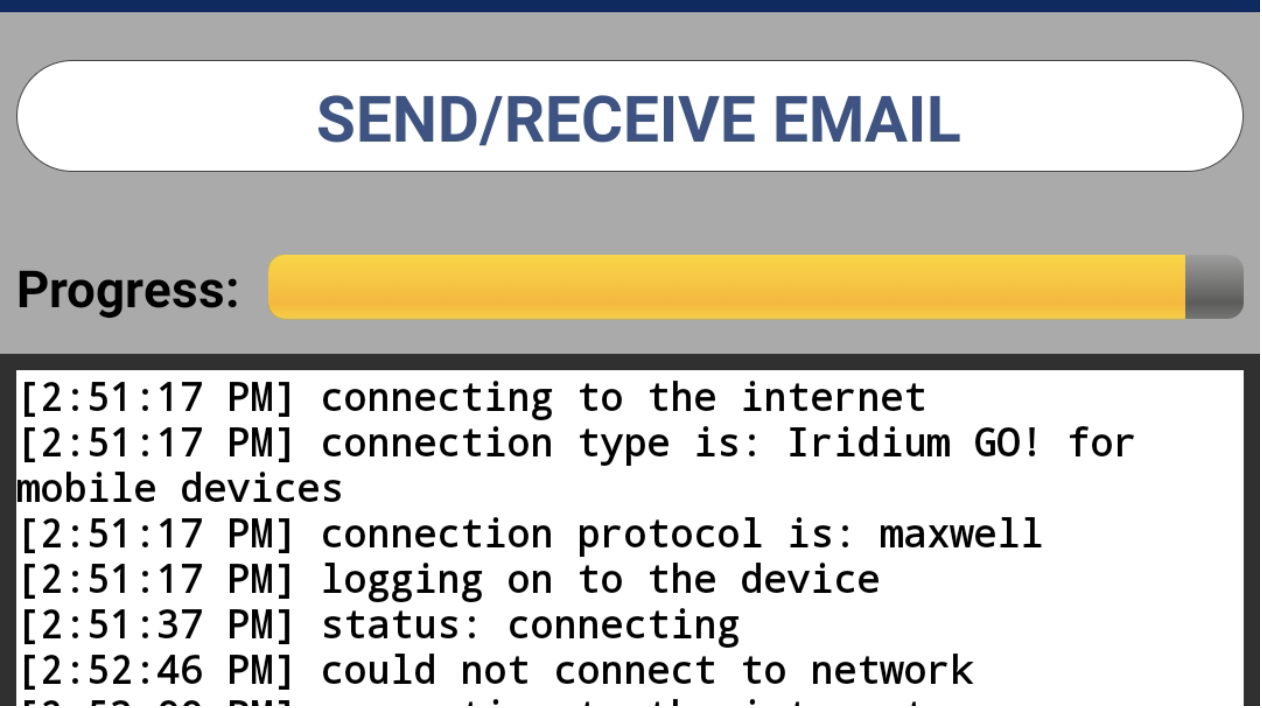
Step 6: Stare intently at the screen as it goes through the following stepwise process, each of which takes anywhere from 5 seconds to 60 seconds to perform:
“Connecting to the internet” (great, I just told you to do that – you don’t get any points for telling me that’s what you’re doing)
“Connection Type is iridium Go” (Well, duh)
“Connection Protocol Is Maxwell” (what even is that?)
“Logging on to the device” (yup, that’s what I asked you to do)
“Status: Connecting” (uh-huh!)
“Status: disconnected” (wait, what?)
“Failed to connect to the Network” (well, I can see that. But Why???? Why, goddamn you!)
“Done” (oh, you think YOU’RE done? I’ll tell you who’s done, here, buddy, and it’s not YOU!)
“Waiting for 20 seconds before making a new connection attempt” (sigh, Ok, I’ll wait. This email BETTER be good!)
(Time elapsed so far: 2 minutes, 48 seconds)
Step 7: Continue to stare intently at the screen, occasionally tapping it to keep it “awake”, as the app will just completely stop if the screen times out (and I don’t want to switch off the screen timeout feature on the phone as it would run itself out of charge much too quickly. Repeat Step 7 an average of 4 times (although the record is 12)
(Time elapsed so far: 7 minutes, 22 seconds)
Step 8: Huzzah, at the 4th attempt, it’s made it past the “connecting” step. Here we go:
“Status: Connecting” (Please, please, let it be this time)
“Status: Connected” (Hallelujah. OK, here we go)
“Connected to 192.168.0.1” (yeah baby. NOW we’re talking)
“Sending/receiving mail” (Finally!)
“Failed” (Oh. No. You. Didn’t!)
(Time elapsed so far: 7 minutes, 43 seconds)
Step 9: Retrieve phone from other side of cockpit where you hurled it in disgust.
(Time elapsed so far: 7 minutes, 50 seconds)
Step 10:
- “Waiting for 20 seconds before making another connection attempt” (Nope, I’m not falling for that one. I’m quitting the app and going back to step 1, just in case a clean start will make it more likely to work. I have no idea if this helps but at least it feels like I’m DOING something)
Step 11: Repeat Steps 2-8
(Time elapsed so far: 12 minutes, 13 seconds)
Step 12
“Connected to 192.168.0.1” (OK, this is the one)
“Sending/receiving mail” (yup, you got this!)
“Connected to 192.168.3.36 on port 3333” (That’s my favourite port!! I love you, Iridium Go. You’re the best.)
“Logged onto the server” (Yee-hah)
“No outbound mail” (that’s cool – I knew that)
“Downloading 1 messages – 3430b (Yes, whoever sent me the mail did NOT attach any images)
(Time elapsed so far: 13 minutes, 4 seconds)
I should interrupt this diatribe for a quick history lesson. It’s 30 years since the internet was invented, and 27 years since I got my first dial up modem. Remember those screechy things from the mid 90’s? So they downloaded at a speed of 56k. These days, your cellphone downloads at an average of 40mbps - that’s 800 times faster than your old dial up modem.
Well, our state-of-the-art iridium Go satellite service downloads at 2.8k - your old dial up modem was 20 times faster than what we’re using now, a quarter of a century later. And the internet you’re using to read this at home is 16,000 times faster.
That’s what we’re dealing with here, people.
OK, now where was I?
Step 13: Stare at the screen as the little yellow progress bar slowly climbs
(Time elapsed so far: 13 minutes, 24 seconds)
Step 14: Tap the screen a couple of times, to stop the phone going to sleep and having to go all the way back to square one.
(Time elapsed so far: 13 minutes, 48 seconds)
Step 15: Huzzah
“Download complete”
Connection Closed
(Time Elapsed so far: 14 minutes)
Step 16: Hit the back button on the phone (not within the app – that would be far too fancy) to go back one screen to the home screen of the email function within the app
Step 17: Hit the Email option – this now presents a list of all the emails previously downloaded
Step 18: Drag the screen downwards to refresh the screen, so that the new email will appear.
(Time elapsed so far: 14 minutes, 5 seconds)
Step 19: Yay – it’s (someone who shall remain nameless) saying “Haha” to the long email I composed and sent last night.
But sometimes (most times, in fact), it’s one of you lovely people sending us a long email with exciting news from the outside world, or sharing a funny thought, or laughing at something funny I wrote to you, and those last 14 minutes of torture melt away, to be replaced by the warm glow of human connection.
In all seriousness, frustrating though it is, and laughably incompetent though the app and the technology is, when you’re out here disconnected from Instant Messenger, and Whatsapp, and emails downloading in the background, the effort actually feels worth it.
It’s the effort required that makes each communication so much more special.
And makes us feel like astronauts from a sci-fi movie light years away and getting messages sent from back home.
So thank-you – please keep it up. We love hearing from you so much.
“Ping”
Oops, gotta go! Be right back (in 14 minutes and 5 seconds)
Day 3 Statistics:
Time on passage so far: 2 days, 16 hours
Distance Covered: 381 nautical miles
Distance in last 24 ours: 136 nm
Average Speed: 5.9 knots
Distance to Go: 398 nautical miles
Number of emails received in last 24 hours : 21 (and every one a pleasure)